So your host invited you to en route.
It's the app your host chose to run your trip: the schedule, the address and Wi-Fi, messages from your host, and a way to reach them fast if you need to. They've set it all up. You just get the free app and join.

Why your host invited you
- One place
Everything for the trip, together
No digging through emails and group texts for the plan, the address or the Wi-Fi. It's all in your trip.
- Always current
You won't miss a change
If a time moves, you see it straight away ("Changed · was 9:00am"), and your host's announcements reach your phone: as a notification in the app, and by text too if you said yes to texts.
- Close by
Your host is one tap away
A private line to your host, a group thread for everyone on the trip, and an SOS button for when you need them right now.
How to get in
- Step 1
Open your invite and tap Join the trip
Your host's invite comes by email from en route (hello@getenroute.app). Open it on your phone and tap Join the trip. A page opens that walks you through the next step.
- Step 2
Get the app and join
The page shows you how, in order: get the free en route app (App Store on an iPhone, Google Play on an Android), tap Copy my invite, then open en route, tap I'm a guest, then Paste from clipboard and Join my trip. About two minutes.
- Step 3
Fill in your trip details
Your flights, food needs and allergies, and an emergency contact. Only your hosts see it. Tick the box to get texts, so your host's urgent updates reach you even without Wi-Fi or data.
That's it. The app keeps you signed in. If you're ever signed out, or get a new phone, tap Join the trip in your invite again.
Want your host's updates by text?
On the form, tick "Yes, text me urgent trip updates from my host". Texts reach you even when you don't have Wi-Fi or data, so your host can get urgent news to you anywhere on the trip. You can change your answer any time: Info, then "Check or change my details". Reply STOP to any text to stop them.
Can't install apps? The join page has a small link to use en route in your web browser instead. Everything works there except phone notifications; if you said yes to texts, your host's updates reach you by text.
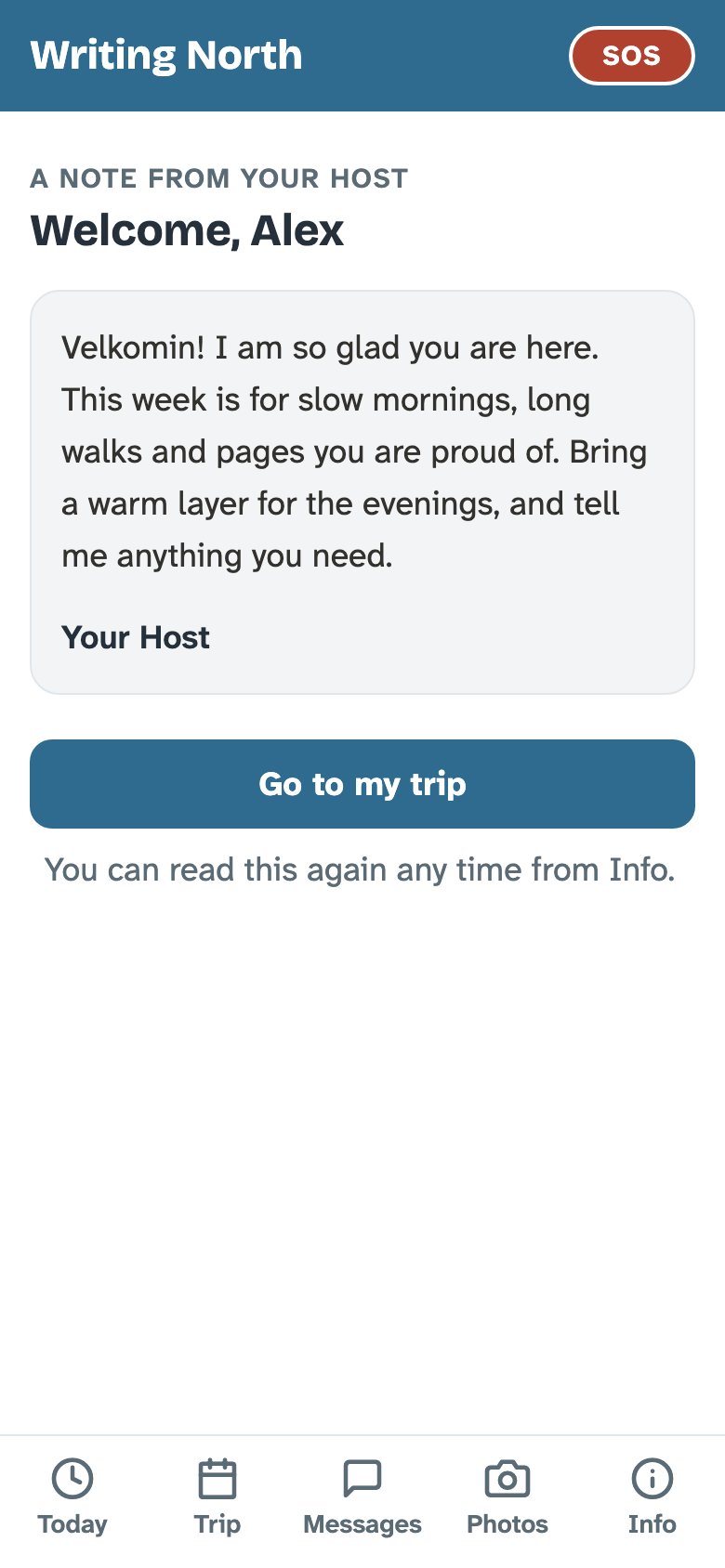
A note from your host, first.
The first time you open the trip, your host's welcome note is waiting. It's in their words, and it's addressed to you.
The app wears your host's colours and their cover photo, so you know you're in the right place. You can read the note again any time from Info.
Where to be, and when.
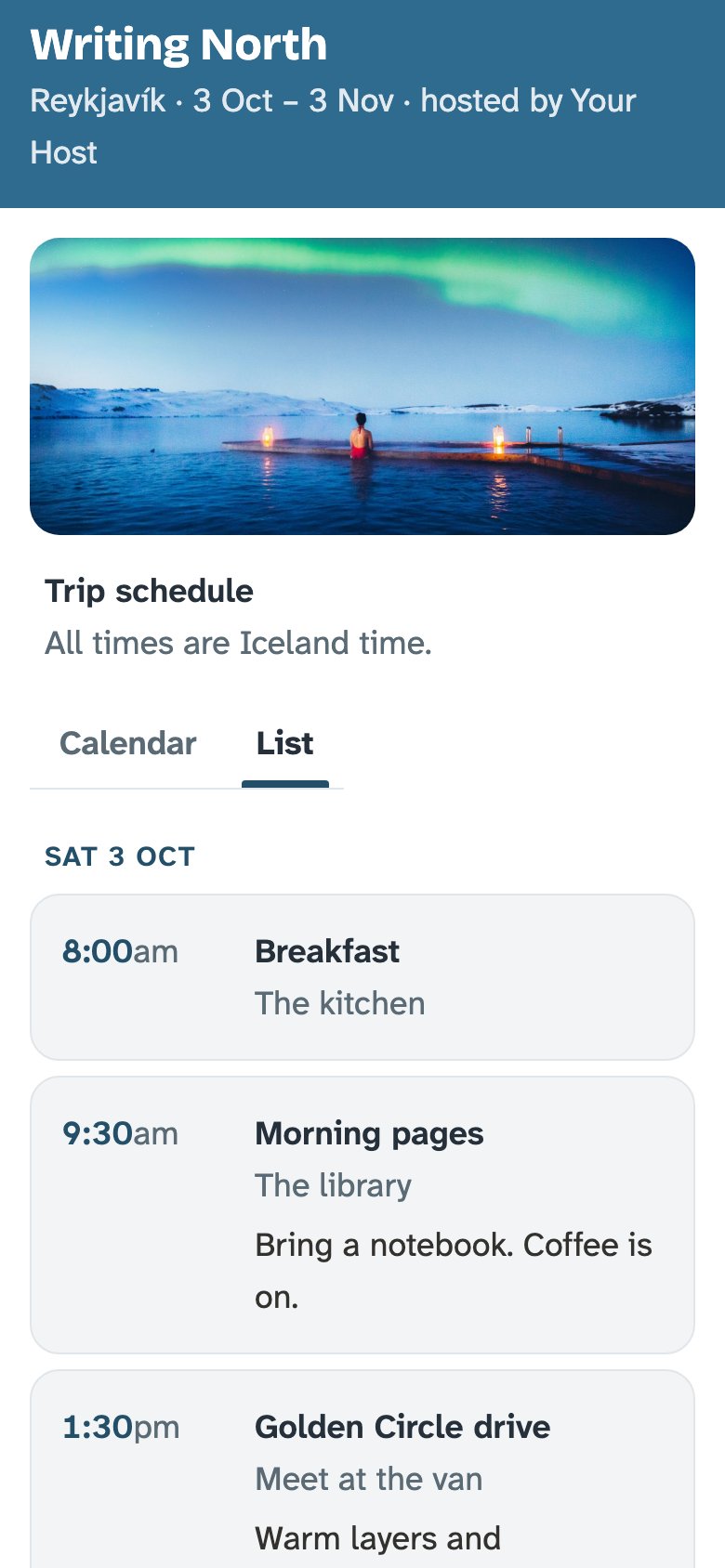
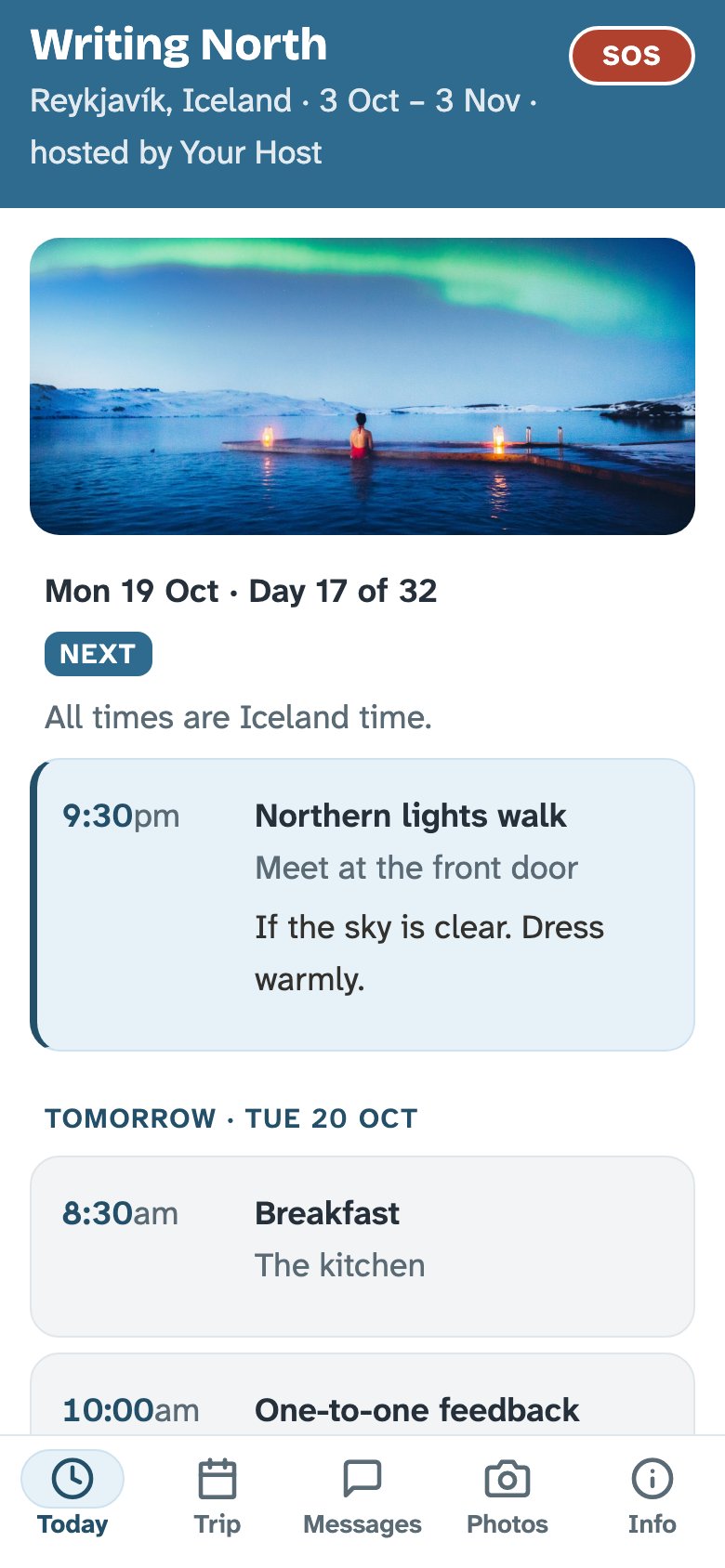
Today shows what's next and what's later. Trip shows every day. Every time is in the trip's own time zone, and the screen says so: "All times are Iceland time."
- If your host moves something, you see "Changed · was 9:00am"
- Saved on your phone, so it works with no signal
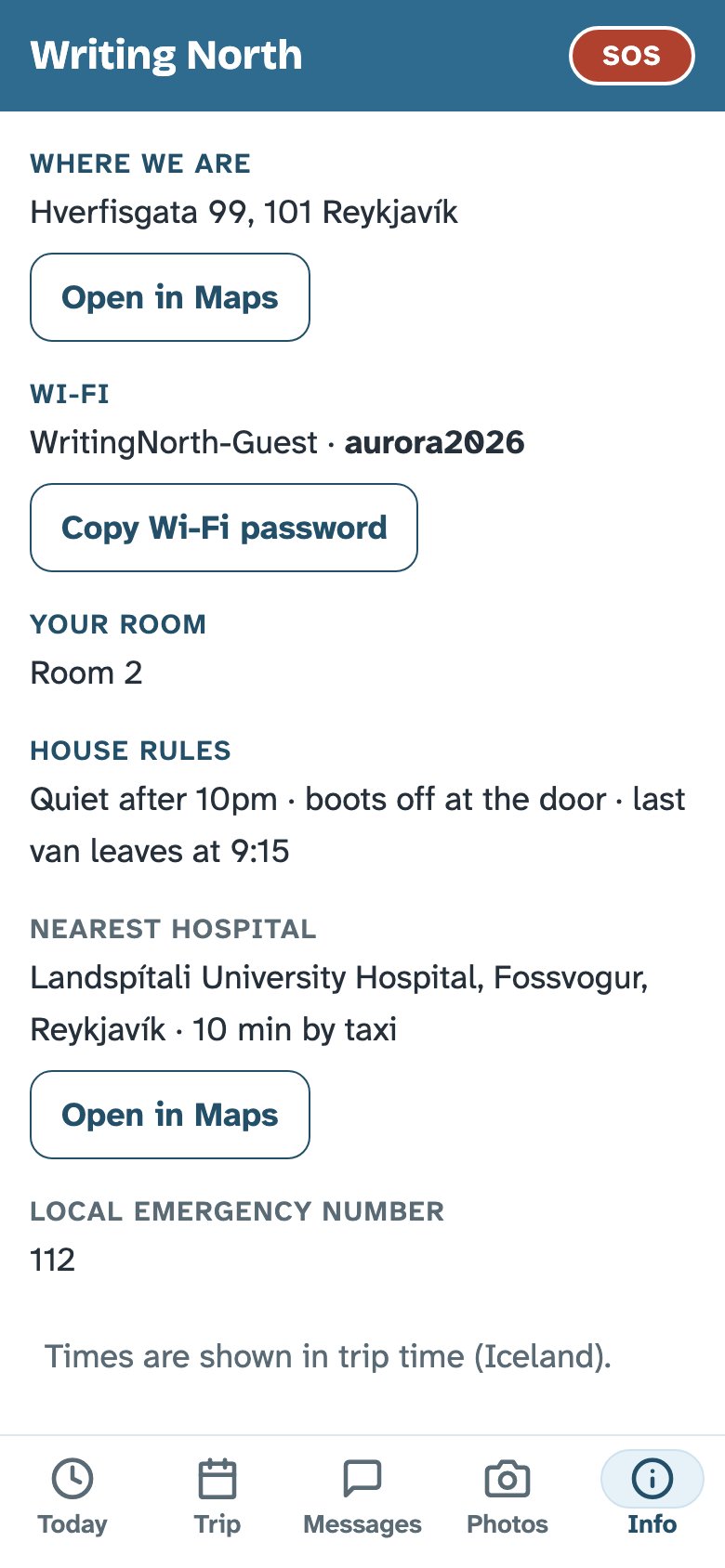
The things you'd otherwise text your host about.
- Where you're staying, with a map link
- The Wi-Fi name and a button to copy the password
- Your room · the house rules · the nearest hospital
- The local emergency number, and a button to call your host
- Meet the team: who's who, before you arrive
One group thread. One line to your host.
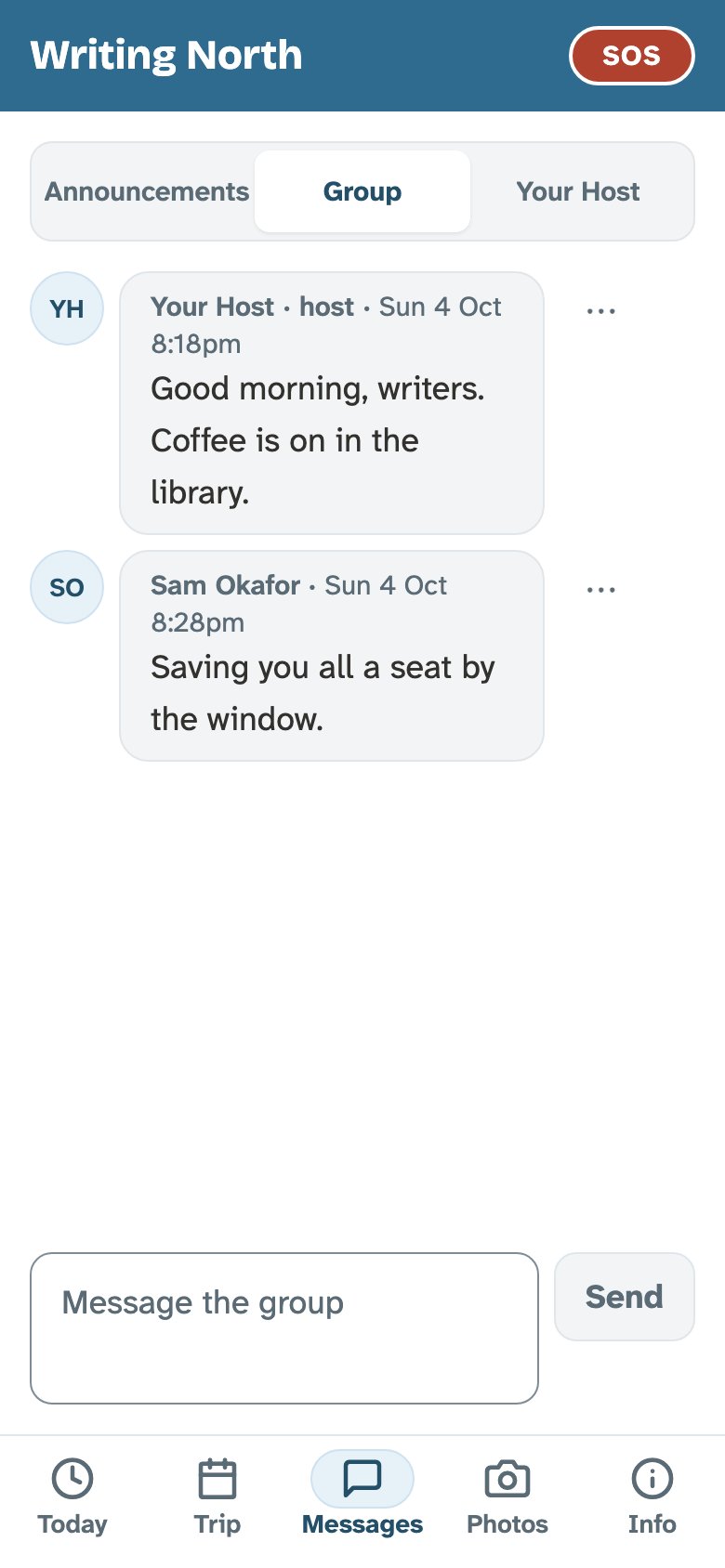
Messages has three tabs: Announcements, the group thread, and a private line to your host. Announcements come with a "Got it" button, so your host knows you've seen them.
There are no private messages between guests. That's on purpose: one conversation, and nobody gets messaged by someone they've just met. If something isn't right, tap the ⋯ next to it to report it, or hide that guest.
One album for the whole group.
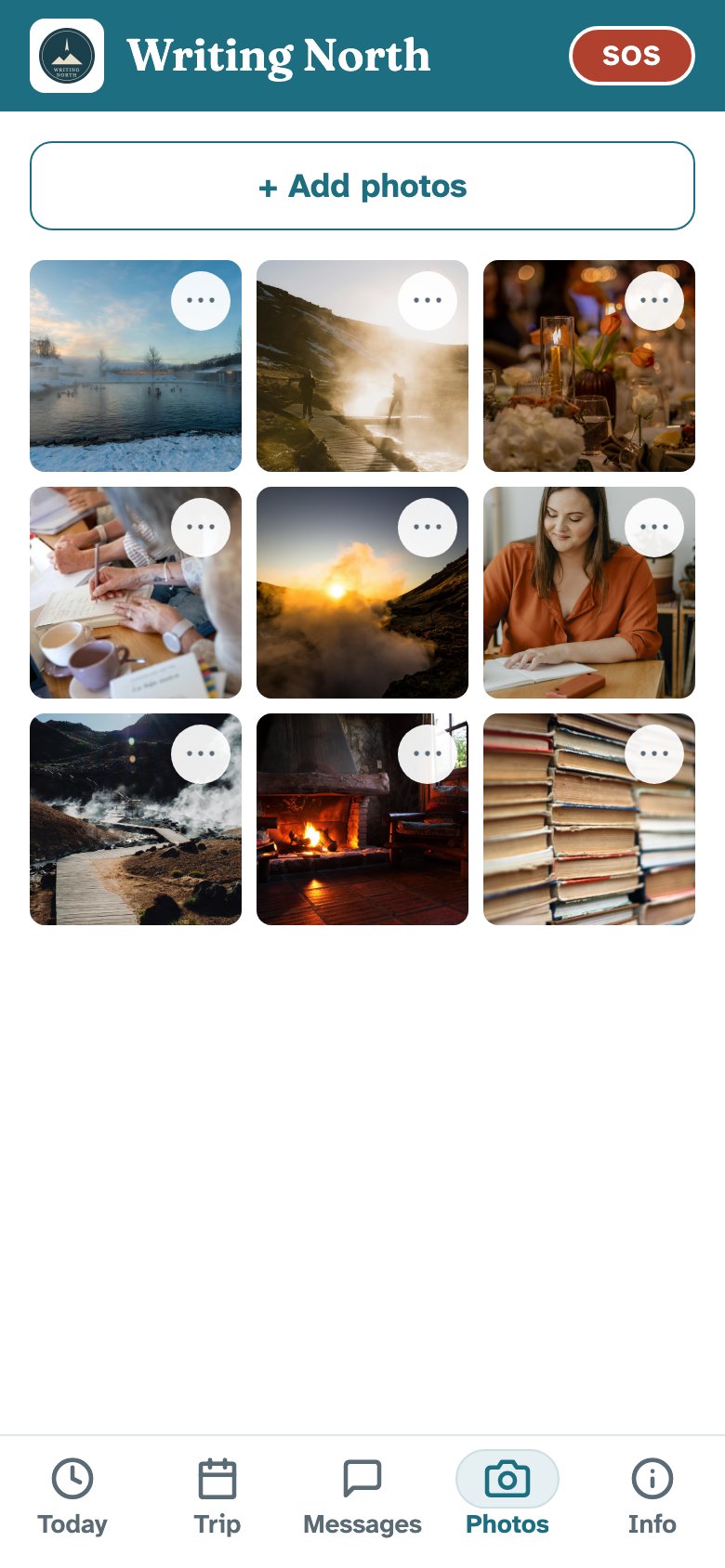
Add photos from your phone to the trip's shared album. Everyone on the trip sees the same pictures, so nobody has to chase them by text afterwards.
- Only people on the trip can see the album
- Report any photo with the ⋯ button; you can delete your own
If you need your host right now.
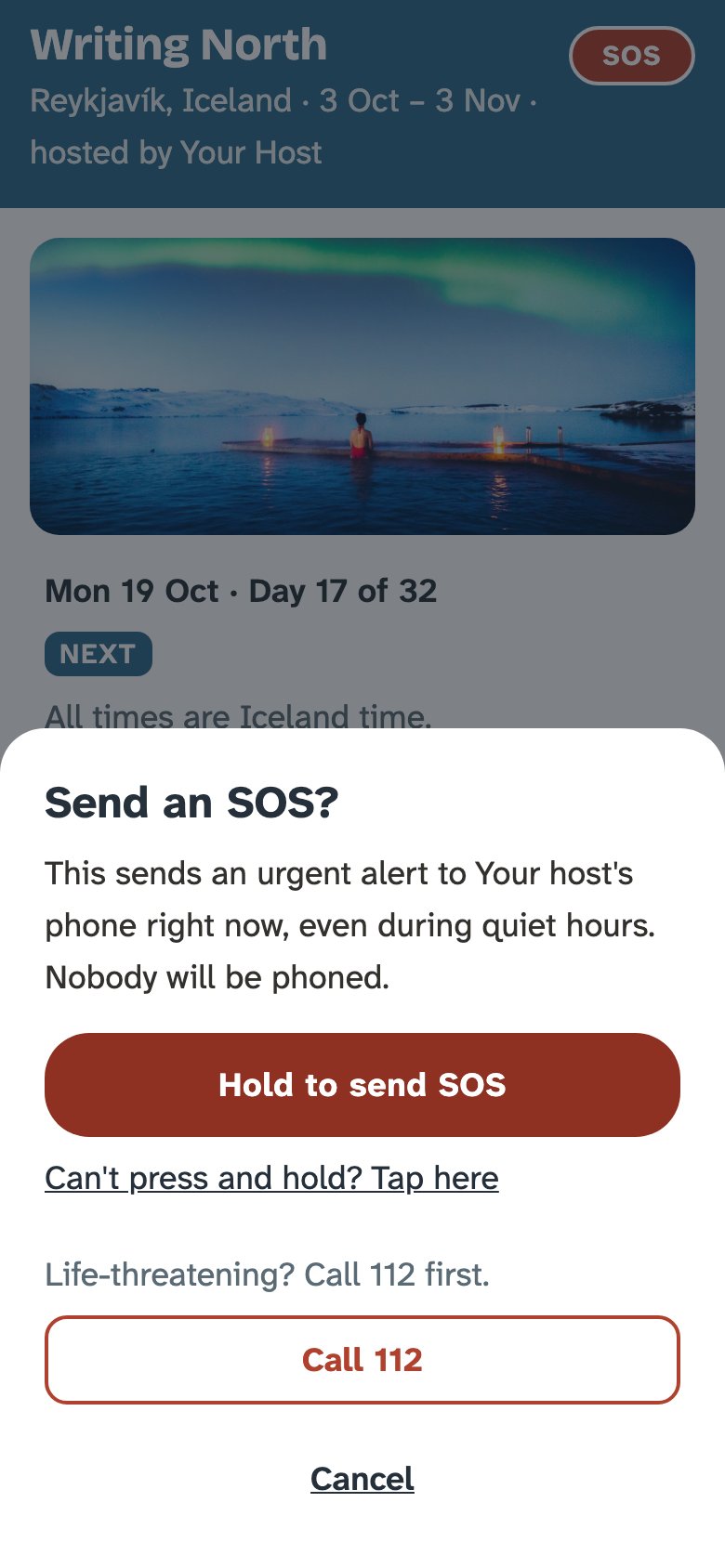
Tap the small SOS at the top of the screen. A sheet asks if you're sure and says who it will reach. Press and hold for two seconds to send it. Let go early and nothing is sent.
Your host gets an alert straight away, even in quiet hours, and if they've turned on SOS calls, en route phones them too. The same sheet has the local emergency number. If it's life-threatening, call that first. Sent it by mistake? Tap "Cancel — I'm OK".
Who sees what.
Your hosts see
- Your pre-trip form: dietary needs, emergency contact, travel plans
- Whether you've tapped "Got it" on an announcement
- Your private messages to them
Other guests see
- What you post in the group thread
- Photos you add to the album
Not your form, and not your private messages.
Texts are only ever sent to guests who said yes on the form. The full policy is on our privacy page.
The share link shows the plan, not the address.
On the Trip screen, tap "Share with someone else" to send it to anyone not on the trip. They get a read-only page with the trip's town and the day-by-day schedule, so they know when you're on a glacier and when you're at dinner.
- Shown: the trip name · the cover photo · the town · dates · the schedule
- Hidden: the address · room numbers · Wi-Fi · other guests' names · messages · the photo album
Got a share link from someone on a trip? Just open it. There's nothing to download.