

For hosts · DRAFT
How your guests join en route
One step at a time, so nobody gets lost. Here is exactly what your guests see, from the moment you invite them to their first look at your trip.
The five steps
- Step 1 · You
You send the invites
In the hosting team workspace, open People and send the invites. Each guest gets their own email from you, in your name. Replies come straight to you.
- Step 2 · The invite email
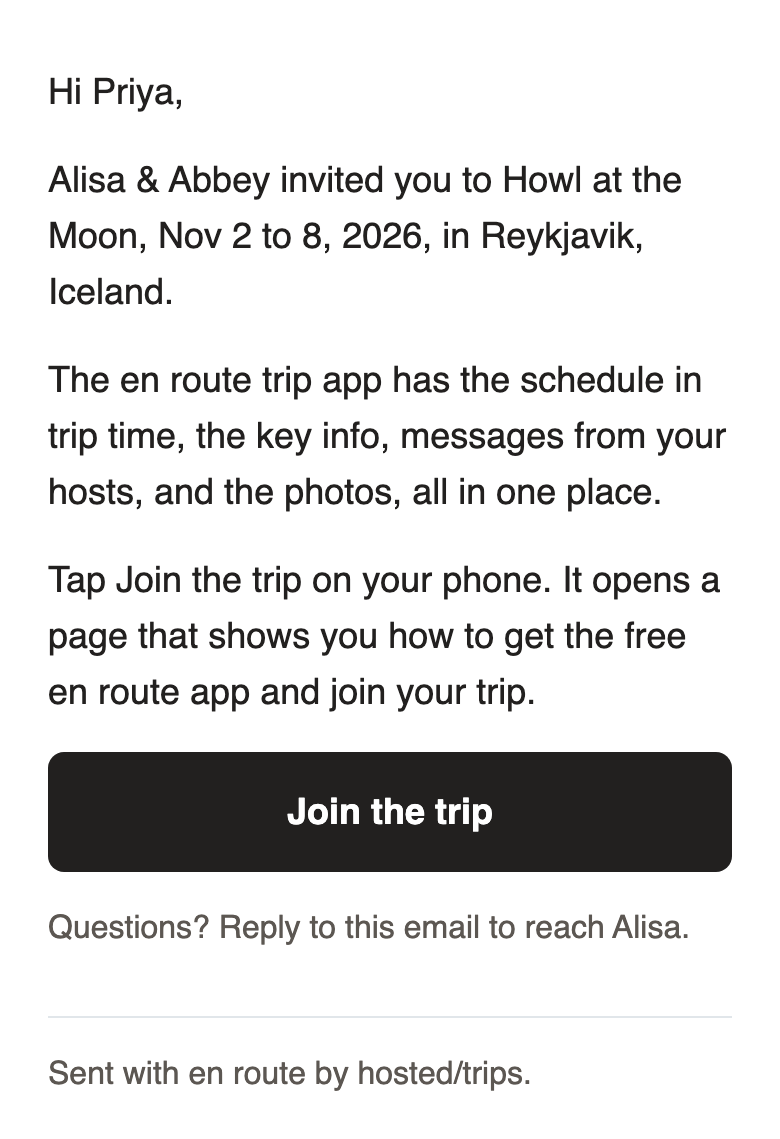
One button: Join the trip
The email asks for one thing only. It tells them that tapping Join the trip on their phone opens a page that shows them how to get the free en route app and join.
- Step 3 · The join page
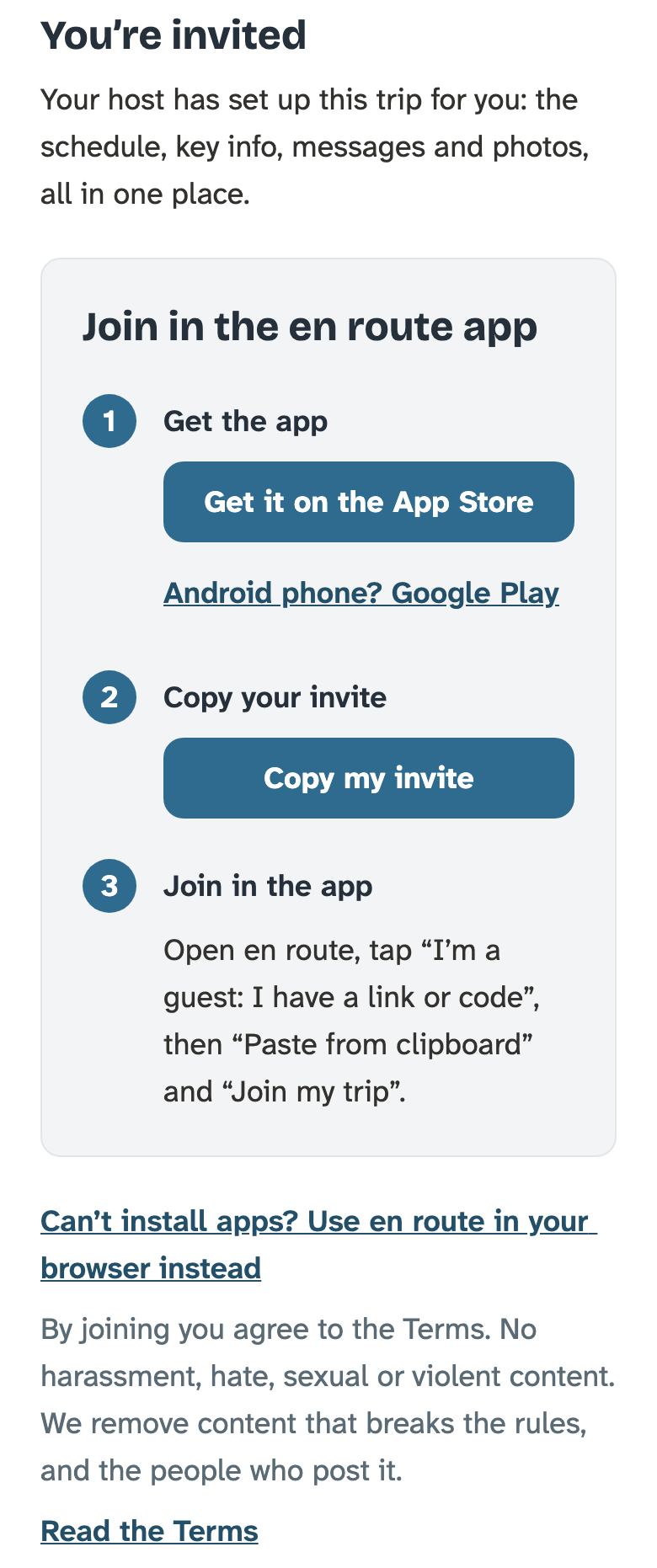
Get the app, copy, paste
The page walks them through it in order: 1. Get the app (App Store on an iPhone, Google Play on an Android). 2. Tap Copy my invite. 3. Open en route, tap I'm a guest, then Paste from clipboard and Join my trip.
- Step 4 · They're in
Your welcome note, then your trip
The first thing they see is your welcome note, in your colours and with your cover photo. Then the trip: today's schedule, the key info, messages and photos. The app keeps them signed in.
- Step 5 · The "You're in" email
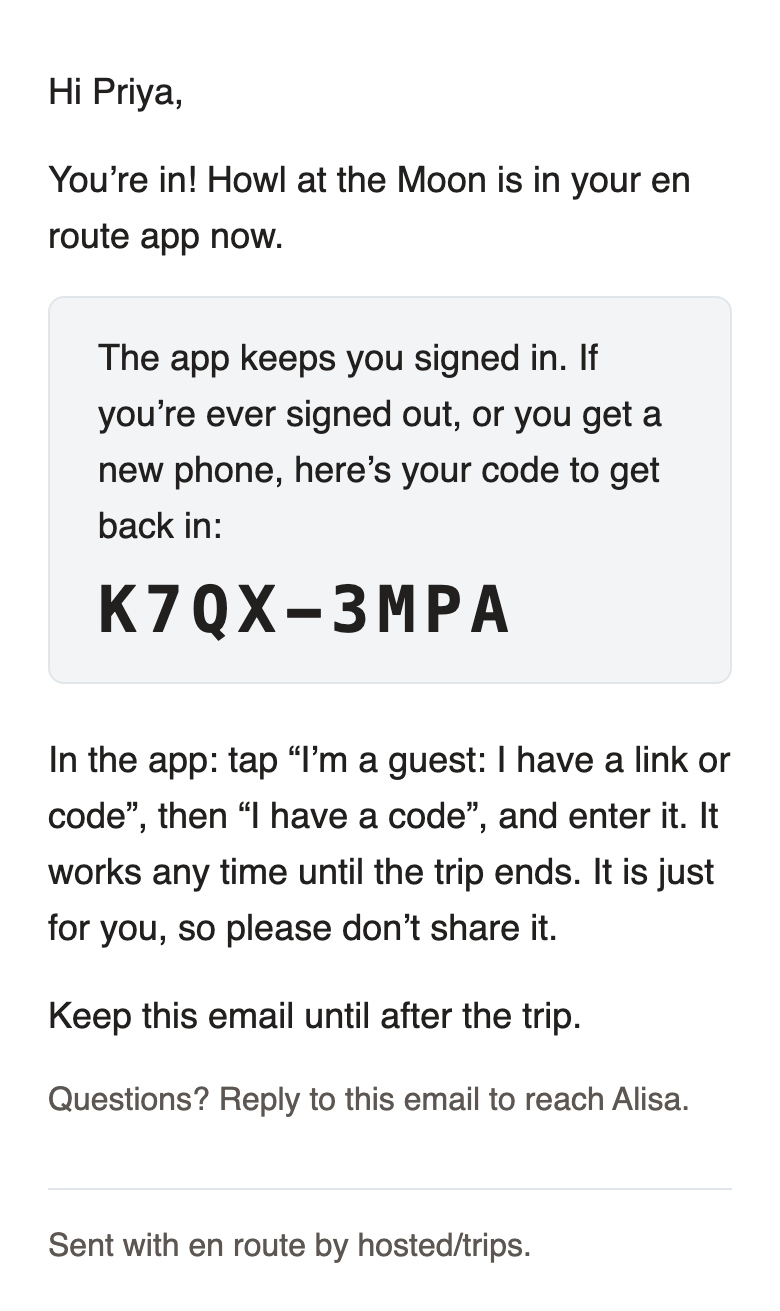
Their code to get back in
Right after they join, a second email arrives with their own code. If they're ever signed out, or get a new phone, they open en route, tap I'm a guest, then I have a code, and they're back in.
The invite email
It comes from you, by name, and asks for one thing: tap Join the trip.
It tells them what will happen when they tap: a page opens that shows them how to get the free en route app and join. Replies come to you.
What the join page looks like
On a phone, the page is all about the app: three numbered steps, one after the other.
After they tap Copy my invite, the button says Copied, so they know it worked. Guests on an Android phone also see a button that opens the invite straight in the app once it's installed.
The "You're in" email
Sent the moment they join. One thing only: their code to get back in.
The app keeps them signed in, so most guests never need it. If they're signed out or get a new phone, the code gets them straight back into your trip, until the trip ends.
If a guest gets stuck
- Can't install apps?
A small link for them
At the bottom of the join page: "Can't install apps? Use en route in your browser instead." Everything works there except phone notifications. If they said yes to texts, your updates reach them by text.
- Signed out?
Their invite still works
Tapping Join the trip in their invite again gets them back in, on any phone, until the trip ends. The code in their "You're in" email works too.
- Still stuck?
We'll help
They can write to support@getenroute.app, or reply to your invite to reach you.
You can see who has joined in People in the hosting team workspace.
Coming next
A few short welcome emails after they join, one topic each and a few days apart: what's in the app, what to do before you go, and adding their photo so the group knows who's who.